The Control Room is SaqrBot's live stream control panel — one dashboard page to watch chat live and run your whole stream: title, category, announcements, clips, markers, timeouts, and games, plus OBS scene control. It is in beta, labeled as such, and bilingual.
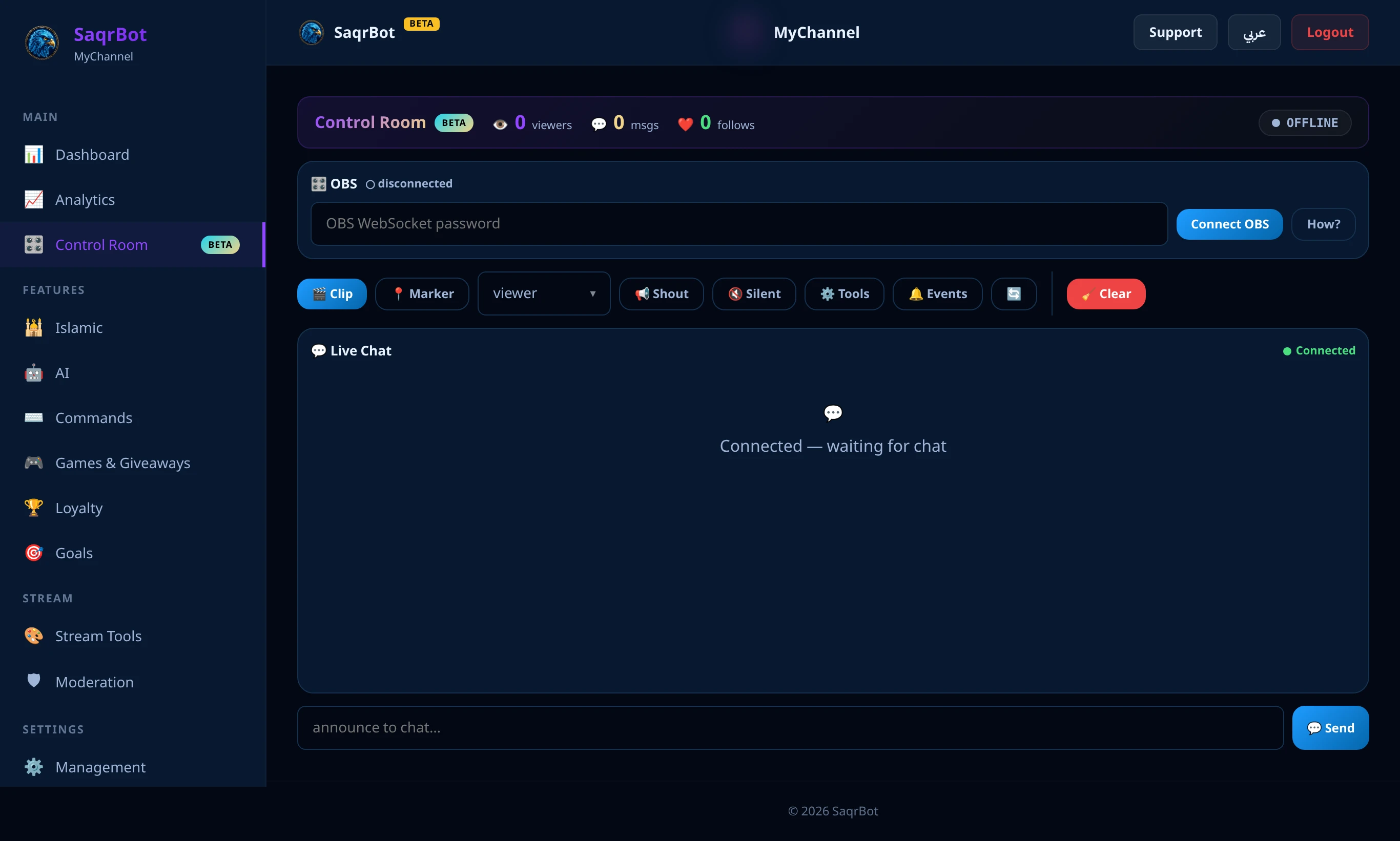
Chat and stream actions on one page
The Control Room shows your live chat with viewer avatars next to one-click actions: send an announcement, create a clip, drop a marker, shout out a streamer, clear chat, time out a viewer, start trivia, or post a fake-news line — all on one page.
Title, category, and OBS control
Update your title and change your category with search suggestions without opening Twitch's dashboard. Enable the OBS WebSocket and enter its password, and SaqrBot connects to OBS locally to switch scenes, mute inputs, start or stop the stream and recording, and show live bitrate, dropped frames, and congestion.
How to open the Twitch Control Room
Connect your Twitch channel
Connect your Twitch channel to SaqrBot from the dashboard so it can read your chat and run stream actions on your behalf.
Open the Control Room
In the Twitch section of the dashboard sidebar, open the Control Room page — it is marked with a beta badge.
Connect OBS (optional)
Enable the OBS WebSocket in OBS, then enter its address and password in the Control Room to switch scenes, mute inputs, and see live bitrate and dropped frames.
Run your stream from one page
Watch chat live, update your title and category, drop a marker, create a clip, or send an announcement — all without leaving the page or alt-tabbing.
Frequently Asked Questions
What is the Twitch Control Room?
The Control Room is SaqrBot's live stream control panel — one dashboard page to watch chat live and update title and category, announce, clip, drop a marker, time out a viewer, clear chat, start trivia, and toggle silent mode. With OBS connected you can switch scenes, mute inputs, start or stop the stream and recording, and watch live bitrate.
Is the Control Room stable or still in beta?
The Control Room is in beta and labeled as such in the dashboard. It is live and usable but newer than the rest of SaqrBot, so expect it to keep improving. The actions it triggers are the same reliable ones SaqrBot uses elsewhere.
Can the Control Room control OBS?
Yes. Enable the OBS WebSocket and enter its password in the Control Room, and SaqrBot connects locally to switch scenes, mute inputs, start or stop the stream and recording, and show live bitrate, dropped frames, and congestion — on the same page as chat.
Does the Control Room respect silent mode?
Yes. The Control Room has a silent-mode toggle. When silent mode is on, chat-sending actions like announcements are held back and it tells you silent mode is on instead of sending. Turn it off when you want the bot to post again.
Is the Twitch Control Room free and bilingual?
Yes. The Control Room is part of SaqrBot's free Twitch tools, and the whole dashboard is bilingual with RTL support. Connect your Twitch channel and it is available in the Twitch section.
Related
Related: Twitch stream tools, the Twitch stats bot, and all Twitch features.
Run your stream from the Control Room
Chat, title, category, clips, markers, and OBS control — one bilingual page, free (beta).
Connect Twitch