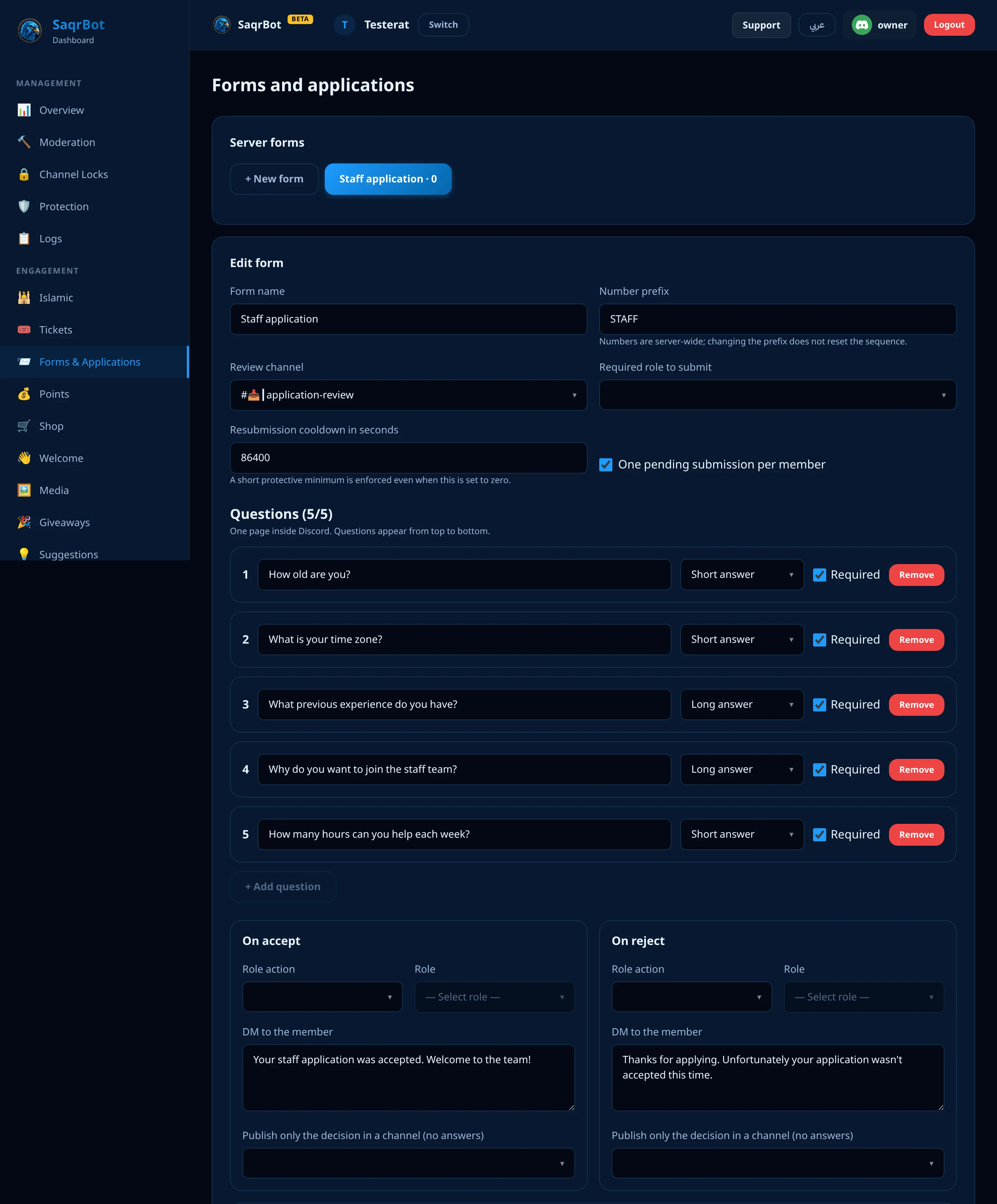
A Discord application bot lets members apply to your staff team, request a partnership, sign up for an event or ask for verification without leaving Discord. With SaqrBot you build the form on the dashboard’s Forms & Applications page (up to 5 questions), deploy a panel with an Open form button, and every submission lands in your review channel as a numbered request, such as STAFF-0004, with Accept and Reject buttons. When a reviewer decides, SaqrBot can add a role, DM the member and publish the decision. It is free, with no premium lock.
What is a Discord application bot?
It is a bot that turns “DM me if you want to join the staff” into a clear process. Instead of scattered DMs, or an outside link whose answers someone copies back by hand, every member answers the same questions in a Discord window, the answers arrive in one channel your team watches, each request gets its own number, and the decision is recorded with the reviewer’s name. Members apply from inside the server, and your team decides from inside the server.
How to set up staff applications, step by step
- Add SaqrBot to your server, open the dashboard and choose Forms & Applications from the sidebar. You need Administrator or Manage Server on that server.
- Press + New form, then pick a ready-made template (staff, partnership, event or verification) or a blank form. A template fills in the name and the questions in the dashboard’s current language, and you can edit every one of them.
- Choose the review channel where requests arrive, and a number prefix such as STAFF. The dashboard only saves the form if SaqrBot can post in that channel. Numbers run server-wide, so changing the prefix does not reset the count.
- Write up to 5 questions. Each one is a Short answer or a Long answer, marked Required or optional, and the question itself can be up to 45 characters.
- Set what happens On accept and On reject: add a role, send a DM to the member, and publish only the decision in a channel.
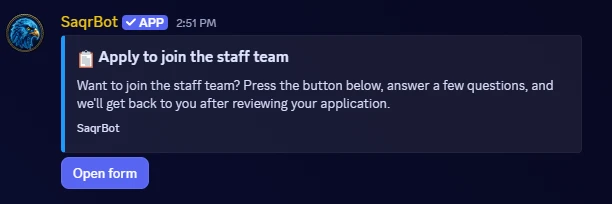
- Tick Form enabled, press Save form, pick the panel channel and press Deploy panel. SaqrBot posts the panel with its Open form button there. You can change the panel’s title, description, colour and image under Form panel appearance.
Ready-made templates: staff, partnership, event and verification
Four templates come with the Forms page. These are their questions exactly as SaqrBot fills them in; every question is required unless it says optional.
| Template | Questions |
|---|---|
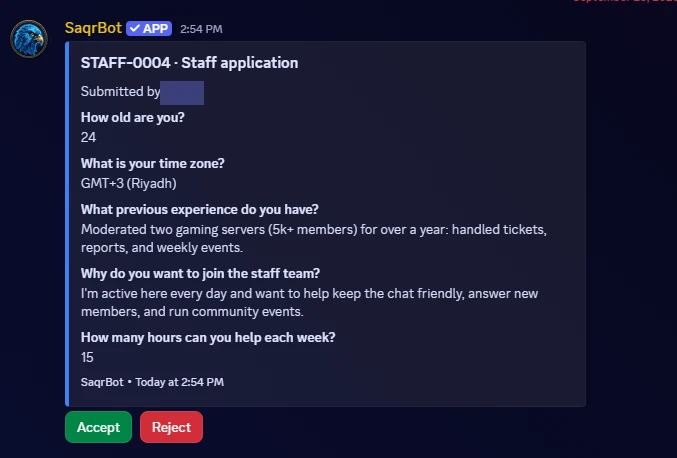
| Staff application | How old are you? · What is your time zone? · What previous experience do you have? · Why do you want to join the staff team? · How many hours can you help each week? |
| Partnership request | What is your server name? · What is the invite link? · How many members are there? · What does this partnership offer both sides? |
| Event signup | What is your server display name? · Can you attend at the scheduled time? · Do you have any notes for the team? (optional) |
| Verification request | Why are you requesting verification? · Have you read and agreed to the server rules? |
What the member sees
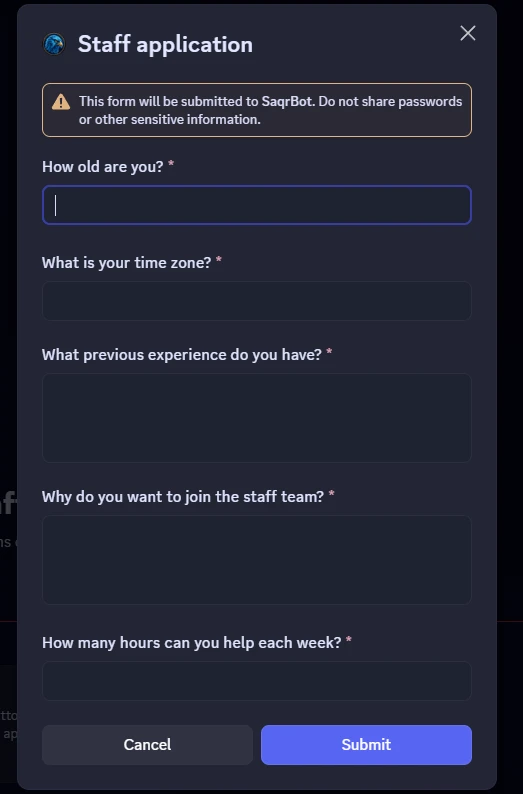
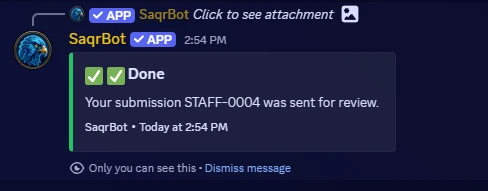
The member finds your panel with its Open form button. Pressing it opens a Discord window with your questions on one page; a member without the required role gets a short notice instead. The window stays valid for 15 minutes, and after that SaqrBot asks the member to open the form again. Once sent, the member gets a confirmation that only they can see, with their request number.
Reviewing applications: Accept or Reject
Each request reaches the review channel as one message: the number and the form name, a mention of the applicant, every question with its answer, and two buttons, Accept and Reject. Links inside answers are shown as plain text, so a submission cannot slip a clickable link into your staff channel. Only members with Manage Server can decide, nobody can decide their own submission, and a request that was decided once cannot be decided again. Reject opens a small box for an optional reason. Every submission is also listed on the dashboard under its form, with its status and answers.
What happens after a decision
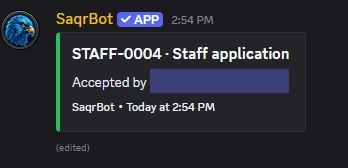
The review message changes to show the decision and who made it, the buttons disappear, and on a rejection the reason is added. Then SaqrBot runs the actions you set for that decision, each one optional:
- Add a role. The role action only adds a role; it never removes one. The role must sit below SaqrBot’s highest role, and the dashboard refuses roles with sensitive permissions such as Administrator, Manage Server, Manage Roles, Kick or Ban. For staff applications, give a starter role like Trial staff and grant moderation permissions yourself.
- A DM to the member. If you write one, SaqrBot sends a fixed line saying the submission was accepted or rejected, followed by your own message (up to 1,000 characters). A member who has closed their DMs will not receive it.
- Publish the decision. SaqrBot posts the decision, without the answers, to a channel you pick, such as an announcements channel.

One detail worth knowing: the reason typed when rejecting is not sent in the DM. It appears on the review message and on the published decision, so write it knowing that channel will show it. If you want every rejected applicant to read the same explanation, put it in the On reject DM.
Stop repeat and spam applications
- One pending submission per member (on by default): a member cannot send a second request to the same form while the first is still waiting.
- Resubmission cooldown: a wait in seconds between two requests from the same member to the same form, up to 2,592,000 seconds (30 days). Even at zero, a short 30-second minimum applies.
- Required role to submit: limit a form to members who hold a role, for example verified members only.
- Form enabled: untick it to close applications. The panel stays, and members are told the form is not accepting submissions right now.
- A daily limit per server: up to 500 submissions a day across all forms, so a flood cannot bury your review channel.
Tickets or applications?
Both start from a panel button, but they do different jobs. A Discord ticket bot opens a private channel for a conversation: support, complaints, questions that need back-and-forth. An application form asks everyone the same fixed questions, collects the answers in one review channel, and ends with a decision that can add a role. Use tickets to talk, and applications to decide.
Discord’s Apply to Join vs. an application form
Discord has its own Server Member Applications feature, shown as Apply to Join. According to Discord’s support article (checked in September 2026), people answer the server’s questions before they get in, and server admins approve or reject each application. That feature decides who enters the server. SaqrBot’s forms are for people who are already members: joining the staff team, partnership requests, event signups or verification, each with a numbered review channel and actions on the decision. The two do not compete, and a server can use both.
Limits to know before you start
- Up to 5 questions per form, all on one page.
- Text answers only, short or long. Multiple-choice questions, dropdowns and file uploads are not supported.
- Up to 25 forms per server, each with one review channel.
- The role action adds a role only; removing one is done by hand.
- Forms are built and deployed from the dashboard; there is no slash command for them.
Related Reading
Pair applications with a Discord ticket bot for conversations, hand out member roles with auto roles in Discord, or browse every SaqrBot Discord feature.
Frequently Asked Questions
How do I make an application form on Discord?
Add SaqrBot, open the dashboard’s Forms & Applications page, press + New form and pick a template or a blank form. Choose a review channel, write up to 5 questions, save, then deploy the panel to a channel. Members press Open form and answer inside Discord.
Is the SaqrBot application bot free?
Yes. The Forms & Applications page has no premium lock: the templates, the review channel, Accept and Reject, and the role, DM and publish actions are all free.
Who can accept or reject applications?
Any member with the Manage Server permission, by pressing Accept or Reject in the review channel. Nobody can decide their own submission, and a request that has been decided cannot be decided again.
Can a form have multiple-choice questions?
No. Every question is a short or a long text answer. For a yes-or-no question, ask it as a short answer, as the verification template does.
Does the member see the rejection reason?
Not in the DM. The reason appears on the review message and on the published decision, if you set a channel for it. If you wrote an On reject DM, the member receives a fixed rejection line followed by your message.
Can a member apply more than once?
Yes, within your rules. By default a member can have only one pending request per form, and you can add a resubmission cooldown of up to 30 days between requests.
Add a free Discord application bot
Staff, partnership, event and verification forms with a review channel — free.
Add to Discord