A Discord server stats bot shows live member, online, and bot counts as auto-updating voice channels.
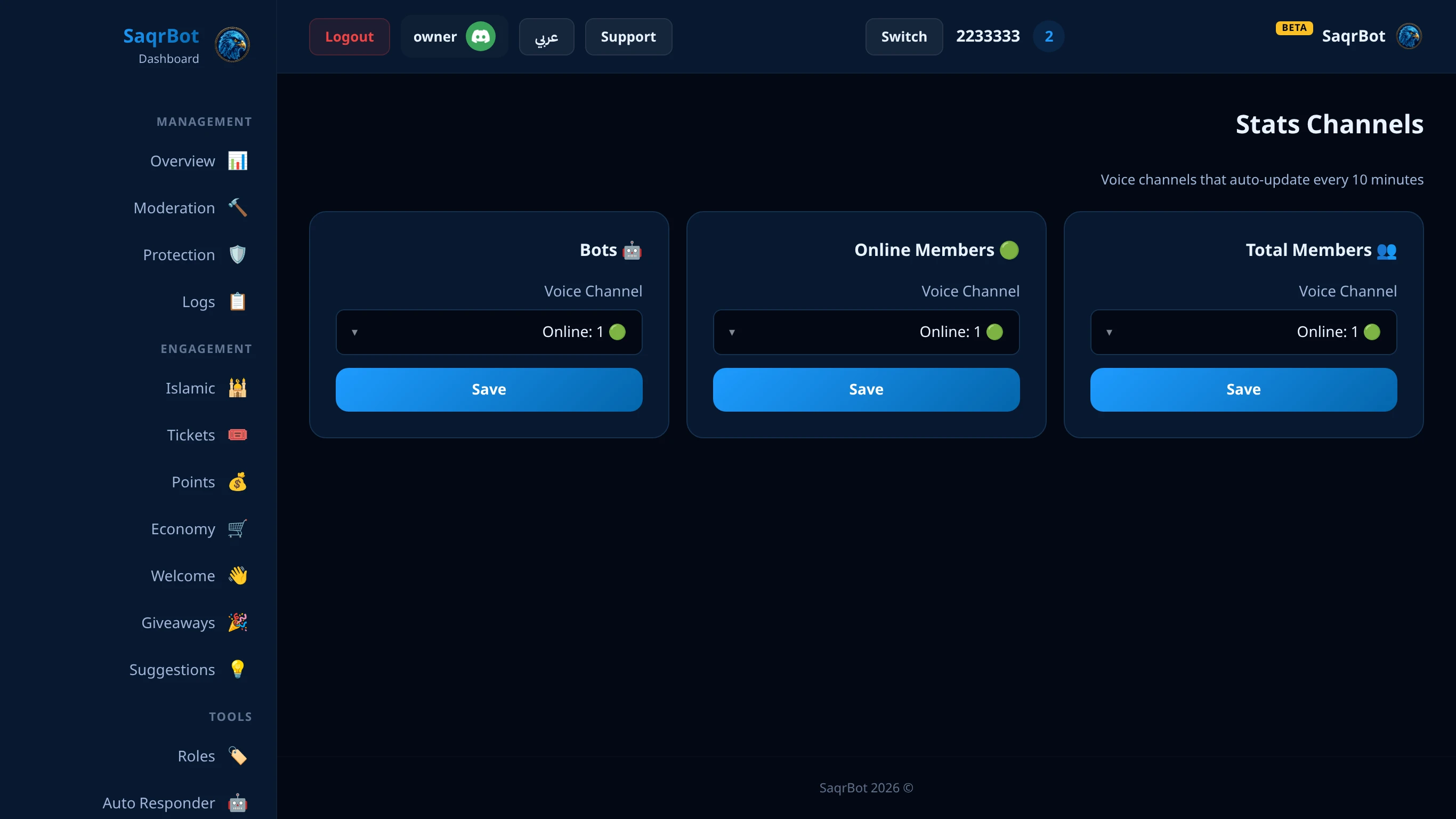
What a Stats Bot Shows
Three counters: Total Members, Online Members, and Bots — each its own voice channel.
How the Counters Update
Counters refresh on member join/leave and at least every 10 minutes, throttled to respect Discord limits.
Bilingual Counter Labels
Counter labels follow your server language — Arabic or English.
Why Member Count Channels Matter
A live count is instant social proof and a public growth milestone for your community.
How to set up a Discord server stats bot with SaqrBot
Create voice channels
Create one voice channel for each stat you want to show, and lock them so members cannot join.
Open the Stats Channels page
Open the SaqrBot dashboard, pick your server, and go to the Stats Channels page.
Assign each counter
For each stat — Total Members, Online, and Bots — select the voice channel it should rename, then save.
Let it update
SaqrBot renames each channel to the live count and refreshes on join/leave and at least every 10 minutes.
Related
Related reading links.
Frequently Asked Questions
What does a Discord server stats bot do?
A Discord server stats bot shows live numbers about your server — like the total member count, how many members are online, and how many bots you have — as voice channel counters that update on their own. SaqrBot turns voice channels you pick into Members, Online, and Bots counters and renames them automatically so the numbers stay current.
Which stats can SaqrBot show?
SaqrBot supports three live stat counters: Total Members (everyone in the server), Online Members (non-bot members who are not offline), and Bots (the number of bot accounts). You can enable any combination — turn on just the member count, or all three. Each one becomes its own voice channel counter.
How often does the member count update?
SaqrBot refreshes the counters whenever a member joins or leaves, and on a timer at least every 10 minutes. Updates are throttled to roughly once every 10 minutes per server to respect Discord's channel rename limits, so the count stays current without hitting rate limits.
How do I set up stats channels in Discord?
Create a voice channel for each stat you want to show, then open the SaqrBot dashboard, go to the Stats Channels page, and assign a voice channel to Total Members, Online Members, or Bots. Save, and SaqrBot renames each channel to the live count. The whole setup takes about two minutes and is done entirely from the dashboard.
Is SaqrBot's server stats bot free?
Yes. SaqrBot is free with no premium tier — all three stat counters, automatic updates, and full dashboard control are included at no cost, and you add it to your server in about 10 seconds.
Why use member count channels?
Member count channels make growth visible at a glance, right at the top of your channel list. New visitors instantly see an active community, and you and your team can watch the numbers move without opening any tools. For Saudi and Gulf streamer communities, a live count at the top of the server is simple proof the place is alive.